> ## Documentation Index
> Fetch the complete documentation index at: https://docs.rafftechnologies.com/llms.txt
> Use this file to discover all available pages before exploring further.
# Enable backups
> Run an instant backup, schedule recurring daily or weekly backups, and manage retention
Updated May 8, 2026
Backups are managed copies of a VM's OS disk. Two flavours:
| Type | When it runs | Use for |
| -------------------- | --------------------------------------------- | -------------------------------------------------- |
| **Instant Backup** | On demand, one-off | Pre-change capture, ad-hoc protection |
| **Scheduled Backup** | Recurring (Daily / Weekly) at a time you pick | Routine protection without remembering to run them |
Each VM can have **multiple schedules** running side by side (for example a Daily schedule for short-cycle protection plus a Weekly schedule for long-cycle retention).
For one-off lower-overhead captures with no schedule and no retention policy, see [Create a snapshot](/products/build/virtual-machines/quickstart-guides/create-snapshot). For when to use which, see [Snapshots vs Backups](/products/build/virtual-machines/concepts/snapshots-vs-backups).
## Two places to manage backups
### a. VM detail page → Backups tab — single VM
Open the VM detail page and switch to the **Backups** tab. Two action buttons sit at the top right:
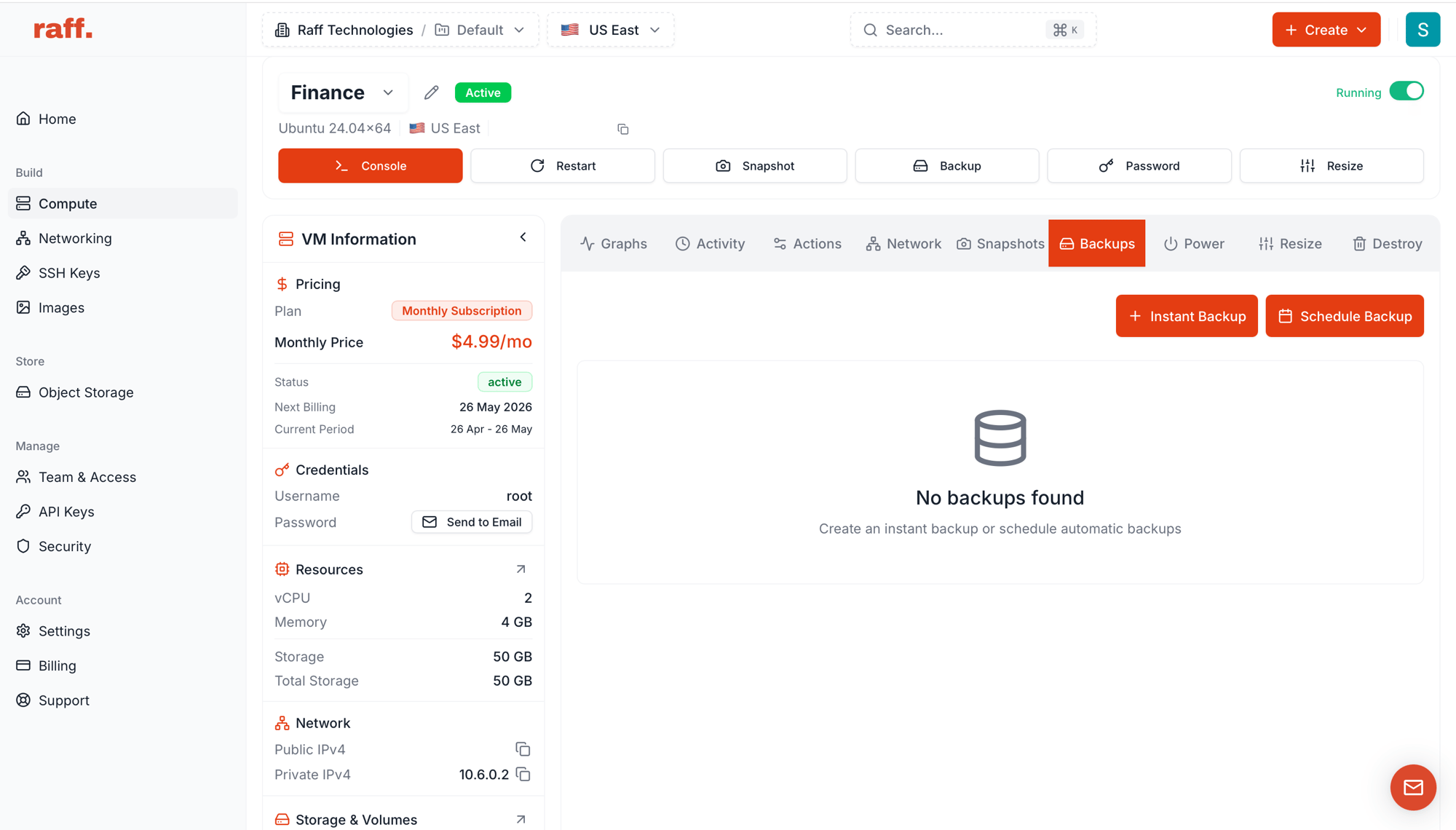 * **+ Instant Backup** — capture now, one-off
* **Schedule Backup** — recurring schedule
Below, every backup of this VM is listed with creation date, size, expiry, and a per-row actions menu.
### b. Compute Resources → Backups — account-wide
The top-level **Backups** tab in **Compute Resources** is the central hub for every VM's backups across the account.
* **+ Instant Backup** — capture now, one-off
* **Schedule Backup** — recurring schedule
Below, every backup of this VM is listed with creation date, size, expiry, and a per-row actions menu.
### b. Compute Resources → Backups — account-wide
The top-level **Backups** tab in **Compute Resources** is the central hub for every VM's backups across the account.
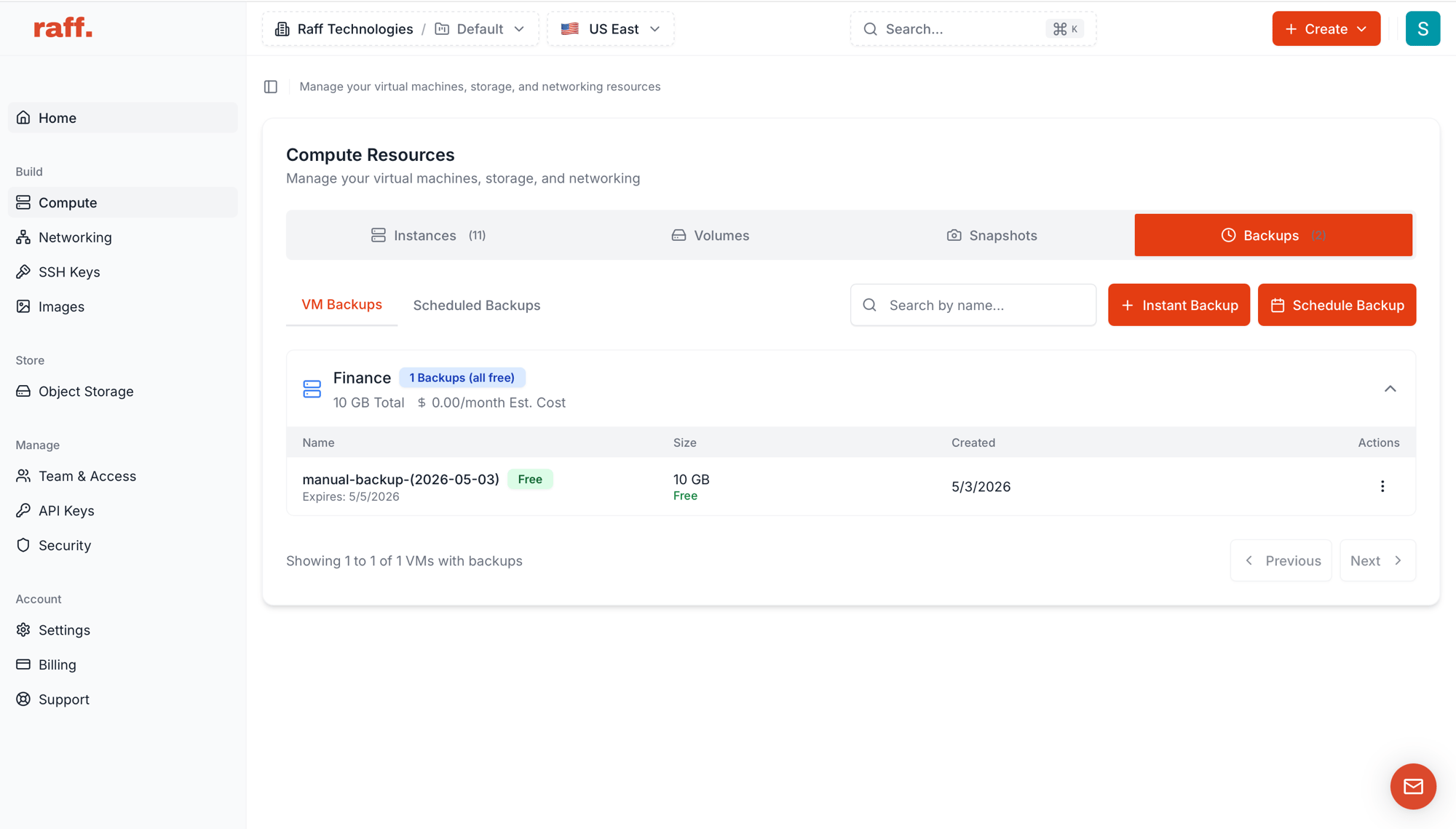 Two sub-tabs:
* **VM Backups** — every individual backup grouped by VM, with size totals and estimated monthly cost.
* **Scheduled Backups** — every active schedule across the account.
Two sub-tabs:
* **VM Backups** — every individual backup grouped by VM, with size totals and estimated monthly cost.
* **Scheduled Backups** — every active schedule across the account.
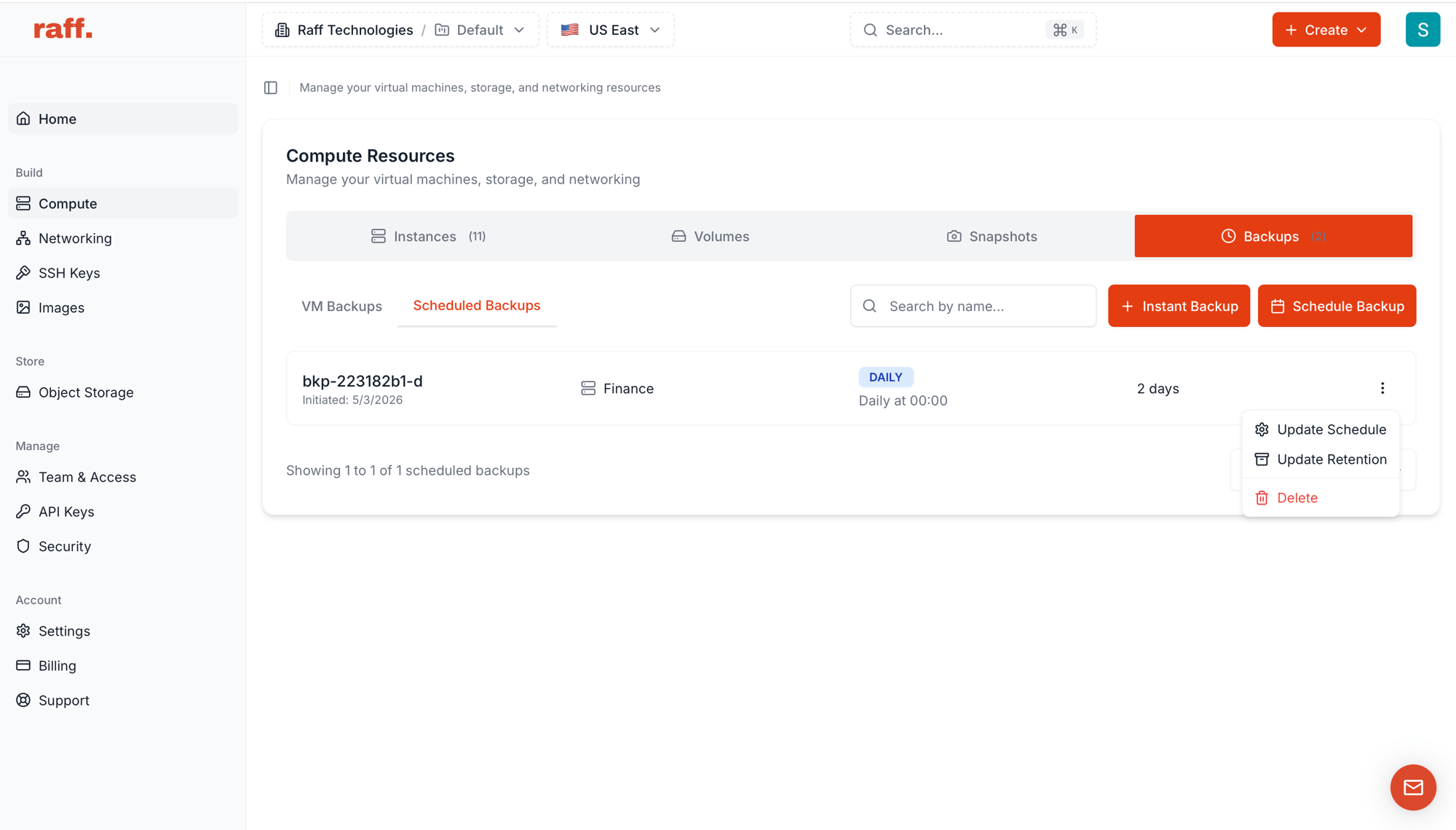 The same **+ Instant Backup** and **Schedule Backup** buttons live here too. From the global view they prompt you to pick which VM to back up.
## Run an instant backup
Click **+ Instant Backup** from either entry point.
The same **+ Instant Backup** and **Schedule Backup** buttons live here too. From the global view they prompt you to pick which VM to back up.
## Run an instant backup
Click **+ Instant Backup** from either entry point.
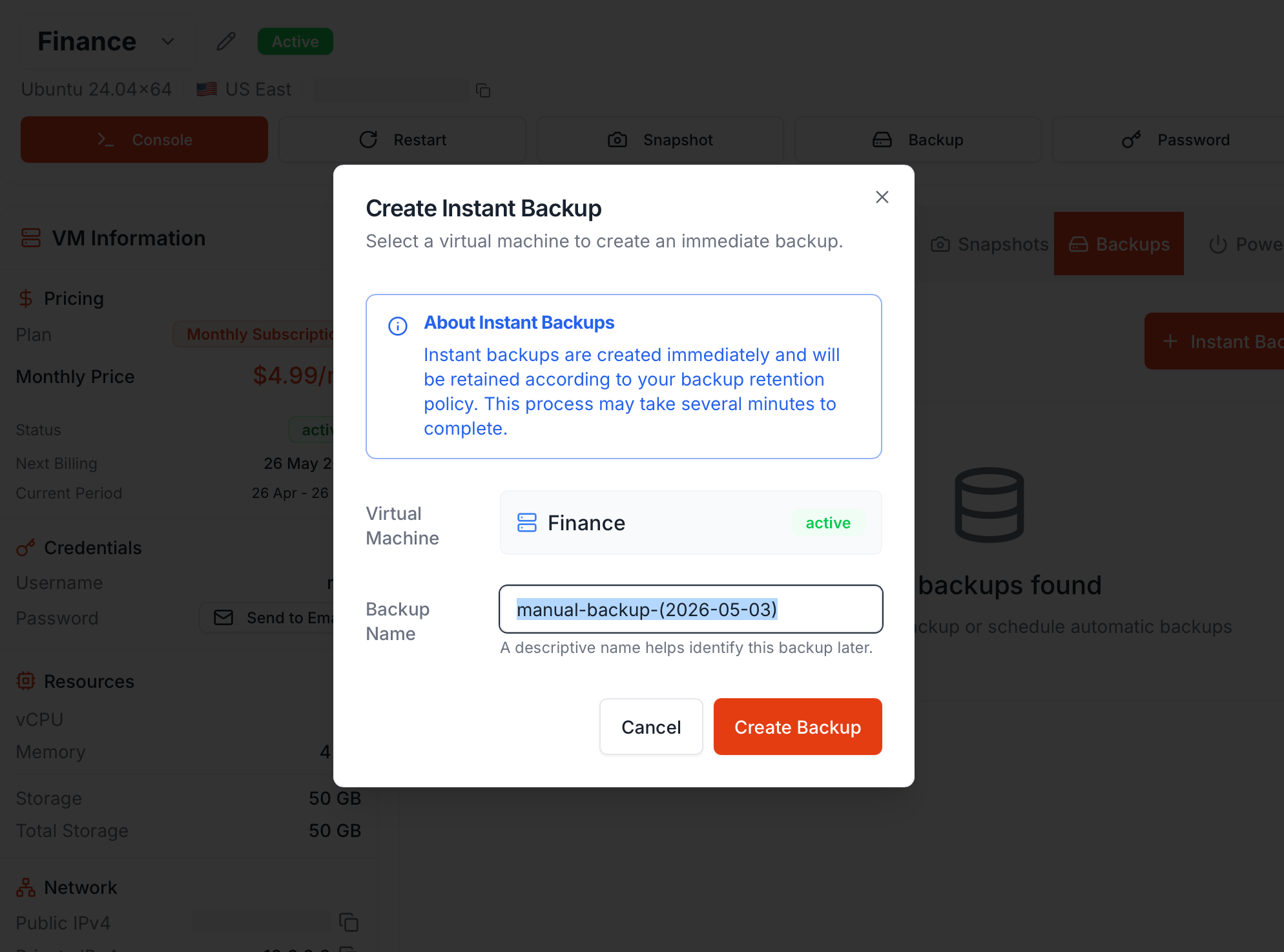 | Field | Value |
| ------------------- | ------------------------------------------------------------------------------------ |
| **Virtual Machine** | The target VM (pre-filled when launched from a VM detail page) |
| **Backup Name** | Default `manual-backup-(YYYY-MM-DD)`; rename for context (e.g. `pre-kernel-upgrade`) |
Click **Create Backup**. Capture takes several minutes; the new backup appears in the list with `creating` status, then `ready`.
Instant backups are retained according to your VM's retention policy — the same policy that scheduled backups use.
## Schedule recurring backups
Click **Schedule Backup**.
| Field | Value |
| ------------------- | ------------------------------------------------------------------------------------ |
| **Virtual Machine** | The target VM (pre-filled when launched from a VM detail page) |
| **Backup Name** | Default `manual-backup-(YYYY-MM-DD)`; rename for context (e.g. `pre-kernel-upgrade`) |
Click **Create Backup**. Capture takes several minutes; the new backup appears in the list with `creating` status, then `ready`.
Instant backups are retained according to your VM's retention policy — the same policy that scheduled backups use.
## Schedule recurring backups
Click **Schedule Backup**.
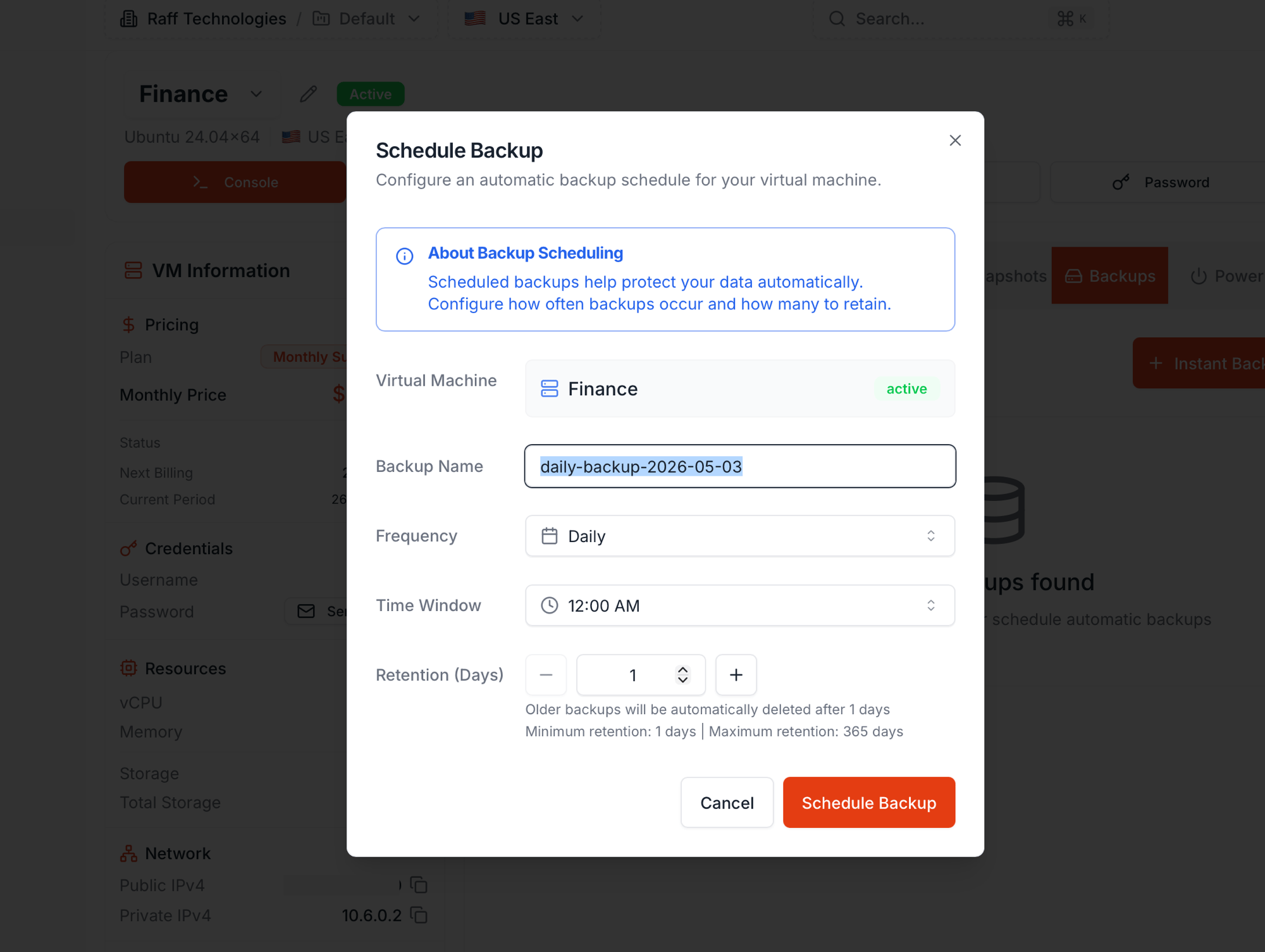 | Field | Options |
| -------------------- | ------------------------------------------------------------------------ |
| **Virtual Machine** | The VM to back up (pre-filled from the detail page) |
| **Backup Name** | Default `-backup-YYYY-MM-DD` (e.g. `daily-backup-2026-05-03`) |
| **Frequency** | `Daily` or `Weekly` |
| **Time Window** | The hour the backup runs (e.g. 12:00 AM) |
| **Retention (Days)** | 1 - 365 |
Older backups beyond the retention window are auto-deleted on a rolling basis. Click **Schedule Backup** to activate.
### Multiple schedules per VM
Add as many schedules as you need on the same VM — they run independently. A common pattern:
| Schedule | Frequency | Retention | Why |
| ----------- | --------- | --------- | ----------------------------------- |
| Short-cycle | Daily | 7 days | Recover from yesterday's bad deploy |
| Long-cycle | Weekly | 90 days | Quarterly compliance, deep recovery |
Both run; their storage counts together against your shared free pool, with the per-GB rate applied only above it.
## Manage existing schedules
On **Compute Resources → Backups → Scheduled Backups**, each schedule's row has a 3-dot Actions menu:
| Action | Effect |
| -------------------- | -------------------------------------------------------------------------------------------- |
| **Update Schedule** | Change frequency (Daily ↔ Weekly) and time window |
| **Update Retention** | Change the number of days backups are kept (1 - 365) |
| **Delete** | Stop the schedule. Backups already taken stay until they age out per the original retention. |
Frequency, time, and retention can be edited any time — no need to delete and recreate.
## Pricing
* **Shared free-storage pool.** Backups and snapshots draw from one account pool: 50 GB free, plus 10% (Standard) or 15% (Premium) of each VM's disk. The pool shrinks when a VM is deleted but never below 50 GB.
* **\$0.05/GB/month** for combined backup + snapshot storage **above** the pool — you're billed only for the excess.
* **Daily and Weekly cost the same per GB** — pricing is by storage, not by frequency. Pick by your recovery point objective: Daily = up to 24 hours of data loss in a worst case, Weekly = up to 7 days.
* The **Estimated Monthly Cost** column on the VM Backups view projects what a full month at the current storage would cost.
Charges accrue continuously and settle at the **end of each calendar month**, with the previous month billed on the **1st** — applied against your account balance first, with any remainder charged to your saved card.
## Backup vs Snapshot
| | Backup | Snapshot |
| ---------------- | ----------------------------------------- | ----------------------------------------- |
| Trigger | Manual *or* scheduled | Manual only |
| Schedule | Yes (Daily / Weekly) | None |
| Retention policy | Configurable (1 - 365 days) | Until you delete it |
| Free tier | Shared account pool (backups + snapshots) | Shared account pool (backups + snapshots) |
| Pricing | \$0.05/GB/month above the pool | \$0.05/GB/month above the pool |
| Best for | Routine protection | Restore points before risky changes |
## Next steps
Decision framework.
One-off, on-demand capture.
Backups are the only thing that survives delete-VM.
| Field | Options |
| -------------------- | ------------------------------------------------------------------------ |
| **Virtual Machine** | The VM to back up (pre-filled from the detail page) |
| **Backup Name** | Default `-backup-YYYY-MM-DD` (e.g. `daily-backup-2026-05-03`) |
| **Frequency** | `Daily` or `Weekly` |
| **Time Window** | The hour the backup runs (e.g. 12:00 AM) |
| **Retention (Days)** | 1 - 365 |
Older backups beyond the retention window are auto-deleted on a rolling basis. Click **Schedule Backup** to activate.
### Multiple schedules per VM
Add as many schedules as you need on the same VM — they run independently. A common pattern:
| Schedule | Frequency | Retention | Why |
| ----------- | --------- | --------- | ----------------------------------- |
| Short-cycle | Daily | 7 days | Recover from yesterday's bad deploy |
| Long-cycle | Weekly | 90 days | Quarterly compliance, deep recovery |
Both run; their storage counts together against your shared free pool, with the per-GB rate applied only above it.
## Manage existing schedules
On **Compute Resources → Backups → Scheduled Backups**, each schedule's row has a 3-dot Actions menu:
| Action | Effect |
| -------------------- | -------------------------------------------------------------------------------------------- |
| **Update Schedule** | Change frequency (Daily ↔ Weekly) and time window |
| **Update Retention** | Change the number of days backups are kept (1 - 365) |
| **Delete** | Stop the schedule. Backups already taken stay until they age out per the original retention. |
Frequency, time, and retention can be edited any time — no need to delete and recreate.
## Pricing
* **Shared free-storage pool.** Backups and snapshots draw from one account pool: 50 GB free, plus 10% (Standard) or 15% (Premium) of each VM's disk. The pool shrinks when a VM is deleted but never below 50 GB.
* **\$0.05/GB/month** for combined backup + snapshot storage **above** the pool — you're billed only for the excess.
* **Daily and Weekly cost the same per GB** — pricing is by storage, not by frequency. Pick by your recovery point objective: Daily = up to 24 hours of data loss in a worst case, Weekly = up to 7 days.
* The **Estimated Monthly Cost** column on the VM Backups view projects what a full month at the current storage would cost.
Charges accrue continuously and settle at the **end of each calendar month**, with the previous month billed on the **1st** — applied against your account balance first, with any remainder charged to your saved card.
## Backup vs Snapshot
| | Backup | Snapshot |
| ---------------- | ----------------------------------------- | ----------------------------------------- |
| Trigger | Manual *or* scheduled | Manual only |
| Schedule | Yes (Daily / Weekly) | None |
| Retention policy | Configurable (1 - 365 days) | Until you delete it |
| Free tier | Shared account pool (backups + snapshots) | Shared account pool (backups + snapshots) |
| Pricing | \$0.05/GB/month above the pool | \$0.05/GB/month above the pool |
| Best for | Routine protection | Restore points before risky changes |
## Next steps
Decision framework.
One-off, on-demand capture.
Backups are the only thing that survives delete-VM.