> ## Documentation Index
> Fetch the complete documentation index at: https://docs.rafftechnologies.com/llms.txt
> Use this file to discover all available pages before exploring further.
# Use the Networking diagram
> Visualize every VPC, VM, and public IP in your account on one interactive canvas — and manage them inline with click-to-action menus
Updated May 8, 2026
The **Networking** page in the dashboard opens to a live, interactive diagram of your private network: every VPC, every VM that lives in one, and every public IP attached to a VM, drawn in their actual relationships. It's the fastest place to answer questions like *"which VPC is this VM on?"*, *"which IP is attached to which server?"*, and *"can I detach this without breaking anything?"* — and to take action without jumping between tabs.
## Open the page
In the left sidebar, click **Networking**. The page opens on the **Diagram** tab by default.
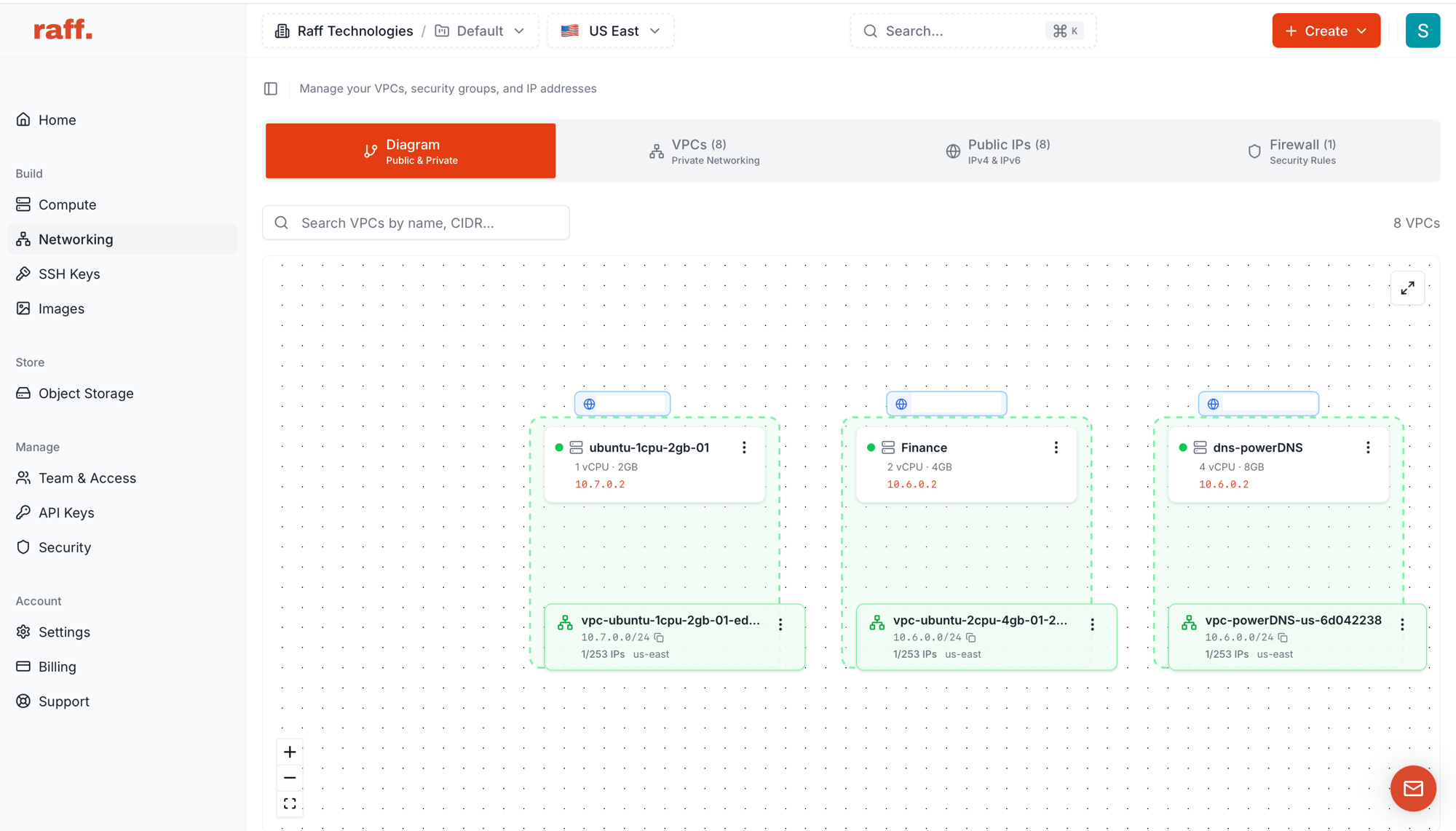 Across the top there are four tabs:
| Tab | What it shows |
| -------------- | ---------------------------------------------------------------------- |
| **Diagram** | Interactive map of VPCs, VMs, and public IPs — what this page is about |
| **VPCs** | Flat list of every VPC with CIDR, IP usage, region, attached VMs |
| **Public IPs** | Every IPv4 / IPv6 address you hold, free or assigned |
| **Firewall** | Security rules — inbound and outbound rules attached to VMs |
## Reading the diagram
Each entity on the canvas has a fixed shape:
| Shape | What it is |
| ------------------------------------------ | --------------------------------------------------------------------------------------------------------------------------------- |
| **Green dashed box** | A VPC. Header shows the VPC name; footer shows CIDR, IP usage (e.g. `1/253 IPs`), and region. |
| **White card inside a VPC** | A VM that's attached to that VPC. Shows VM name, vCPU/RAM, and its private IP inside the VPC (e.g. `10.7.0.2`). |
| **Blue chip floating above a VM** | A public IP attached to the VM. Click it for actions. |
| **Green Gateway card hanging below a VPC** | An active **Internet Gateway** for that VPC (Platform Router or Firewall Appliance). Shows the gateway's router IP and public IP. |
Drag with the canvas to pan, scroll to zoom, or use the `+` / `−` controls in the bottom-left. The expand icon in the top-right opens a fullscreen view.
### How a VPC with a gateway looks
When you enable an Internet Gateway on a VPC (see [Manage a VPC → Internet Gateway](/products/network/vpc/quickstart-guides/manage-vpc#internet-gateway--platform-router-vs-firewall-appliance)), the diagram adds a **Gateway** card connected to the bottom of that VPC:
Across the top there are four tabs:
| Tab | What it shows |
| -------------- | ---------------------------------------------------------------------- |
| **Diagram** | Interactive map of VPCs, VMs, and public IPs — what this page is about |
| **VPCs** | Flat list of every VPC with CIDR, IP usage, region, attached VMs |
| **Public IPs** | Every IPv4 / IPv6 address you hold, free or assigned |
| **Firewall** | Security rules — inbound and outbound rules attached to VMs |
## Reading the diagram
Each entity on the canvas has a fixed shape:
| Shape | What it is |
| ------------------------------------------ | --------------------------------------------------------------------------------------------------------------------------------- |
| **Green dashed box** | A VPC. Header shows the VPC name; footer shows CIDR, IP usage (e.g. `1/253 IPs`), and region. |
| **White card inside a VPC** | A VM that's attached to that VPC. Shows VM name, vCPU/RAM, and its private IP inside the VPC (e.g. `10.7.0.2`). |
| **Blue chip floating above a VM** | A public IP attached to the VM. Click it for actions. |
| **Green Gateway card hanging below a VPC** | An active **Internet Gateway** for that VPC (Platform Router or Firewall Appliance). Shows the gateway's router IP and public IP. |
Drag with the canvas to pan, scroll to zoom, or use the `+` / `−` controls in the bottom-left. The expand icon in the top-right opens a fullscreen view.
### How a VPC with a gateway looks
When you enable an Internet Gateway on a VPC (see [Manage a VPC → Internet Gateway](/products/network/vpc/quickstart-guides/manage-vpc#internet-gateway--platform-router-vs-firewall-appliance)), the diagram adds a **Gateway** card connected to the bottom of that VPC:
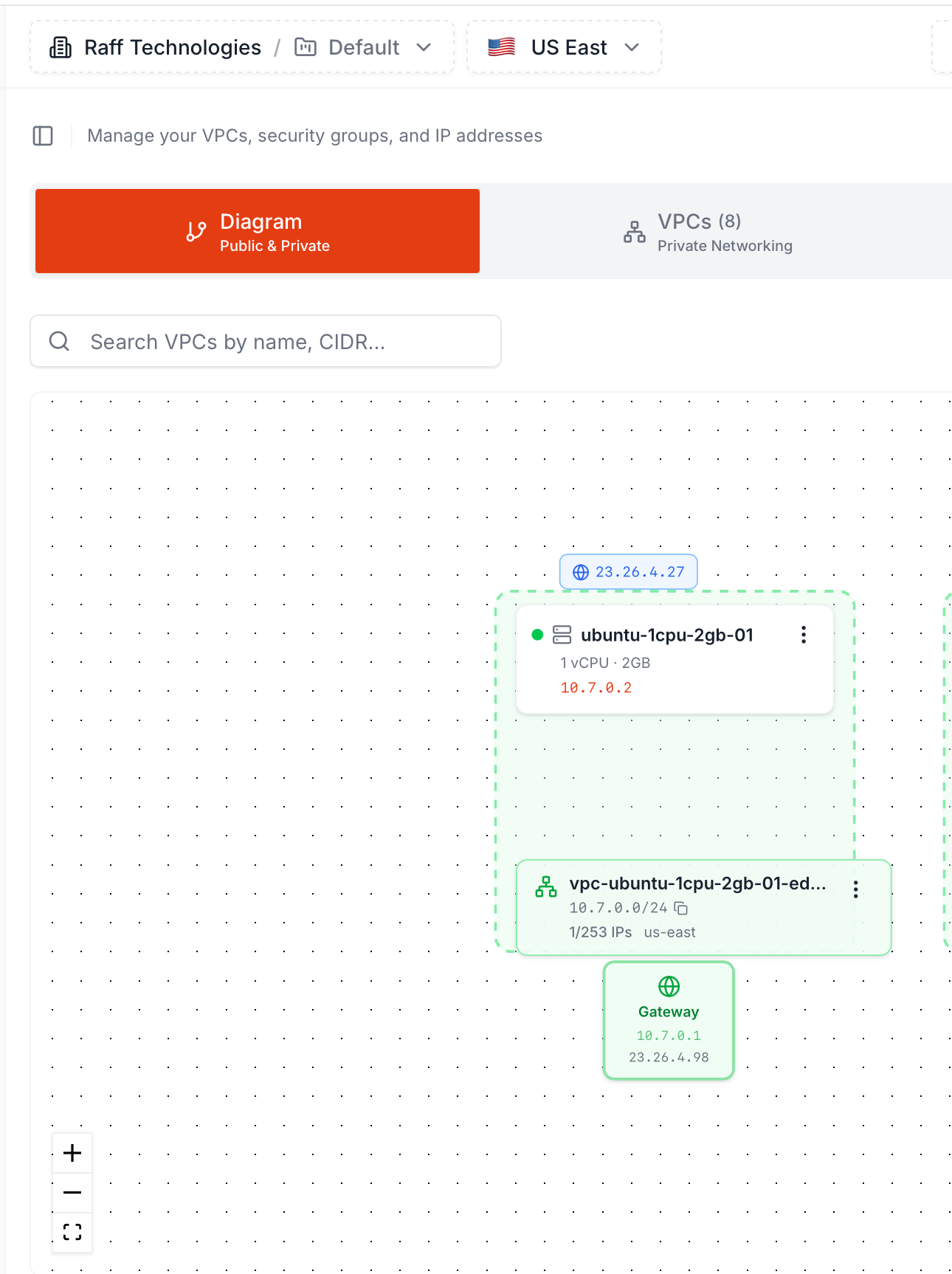 The Gateway card shows the two IPs that matter:
| Line | What it means |
| ----------------------------------------- | ------------------------------------------------------------------------------------------------------------------------------- |
| **🌐 Gateway** | Header — the icon turns green when the gateway is active |
| **Router IP** (top, e.g. `10.7.0.1`) | The gateway's address inside the VPC. Always `.1` of the VPC's CIDR. VMs use this as their default gateway for outbound traffic |
| **Public IP** (bottom, e.g. `23.26.4.98`) | The gateway's WAN-side public IPv4. Outbound NAT and port-forwarding rules ride on this address |
The Gateway card represents both gateway types — a Platform Router and a Firewall Appliance look identical here. To see which one is active, open the VPC's detail page (the gateway card on that page tells you, and clicking the appliance VM in Compute confirms it). The diagram itself is intentionally simple — it's the at-a-glance map, not the gateway control panel.
The card appears the moment the gateway is enabled and disappears when you Disable it from the VPC detail page.
## The three action menus
Every entity on the canvas has a **`⋮`** (three-dot) menu. The actions you get depend on what you click.
### Public IP — Copy or detach
Click the blue IP chip floating above a VM:
The Gateway card shows the two IPs that matter:
| Line | What it means |
| ----------------------------------------- | ------------------------------------------------------------------------------------------------------------------------------- |
| **🌐 Gateway** | Header — the icon turns green when the gateway is active |
| **Router IP** (top, e.g. `10.7.0.1`) | The gateway's address inside the VPC. Always `.1` of the VPC's CIDR. VMs use this as their default gateway for outbound traffic |
| **Public IP** (bottom, e.g. `23.26.4.98`) | The gateway's WAN-side public IPv4. Outbound NAT and port-forwarding rules ride on this address |
The Gateway card represents both gateway types — a Platform Router and a Firewall Appliance look identical here. To see which one is active, open the VPC's detail page (the gateway card on that page tells you, and clicking the appliance VM in Compute confirms it). The diagram itself is intentionally simple — it's the at-a-glance map, not the gateway control panel.
The card appears the moment the gateway is enabled and disappears when you Disable it from the VPC detail page.
## The three action menus
Every entity on the canvas has a **`⋮`** (three-dot) menu. The actions you get depend on what you click.
### Public IP — Copy or detach
Click the blue IP chip floating above a VM:
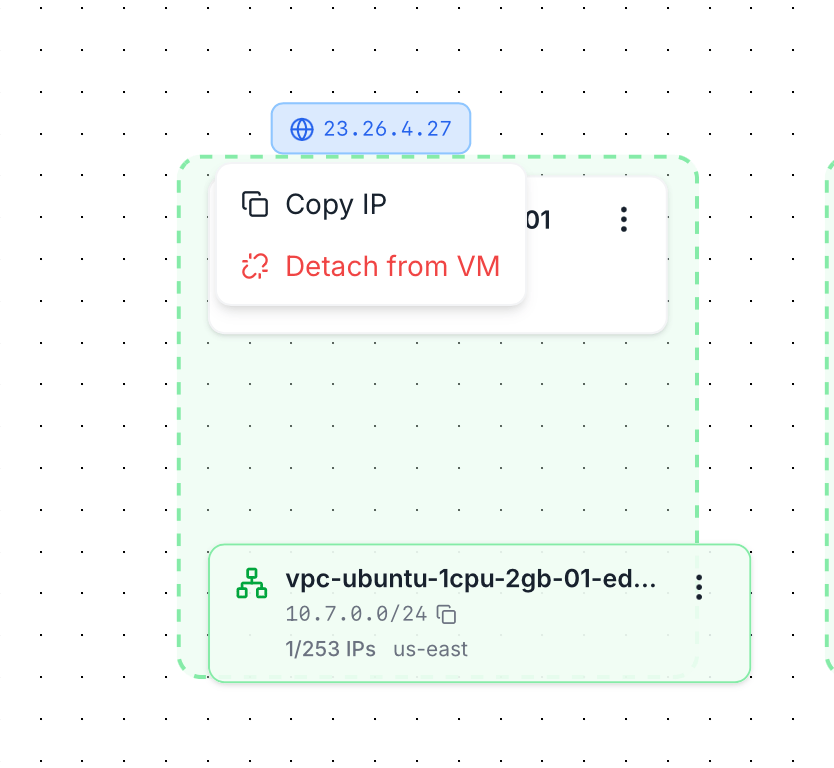 | Action | Effect |
| ------------------ | ---------------------------------------------------------------------------------------------------------------------------------------------- |
| **Copy IP** | Copies the address to your clipboard |
| **Detach from VM** | Releases the public IP from this VM. The IP returns to your account as unassigned — it isn't deleted. Reassign it from the **Public IPs** tab. |
Detaching a public IP **disconnects any active SSH/RDP session** routed through it. If the VM has no other public IP, it becomes reachable only from inside its VPC.
### VM — View or detach from VPC
Click the `⋮` on a VM card:
| Action | Effect |
| ------------------ | ---------------------------------------------------------------------------------------------------------------------------------------------- |
| **Copy IP** | Copies the address to your clipboard |
| **Detach from VM** | Releases the public IP from this VM. The IP returns to your account as unassigned — it isn't deleted. Reassign it from the **Public IPs** tab. |
Detaching a public IP **disconnects any active SSH/RDP session** routed through it. If the VM has no other public IP, it becomes reachable only from inside its VPC.
### VM — View or detach from VPC
Click the `⋮` on a VM card:
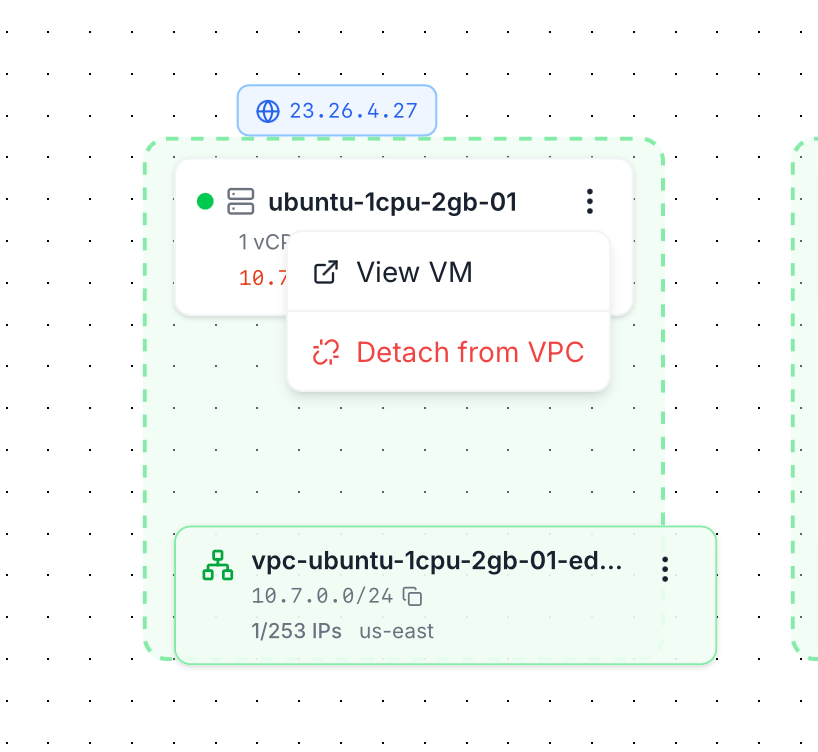 | Action | Effect |
| ------------------- | ------------------------------------------------------------------------------------------------------------ |
| **View VM** | Opens the VM detail page in a new context |
| **Detach from VPC** | Removes the VM's interface in this VPC. The VM stays running but loses the private IP from this VPC's range. |
A VM must remain reachable on **at least one network** — Raff blocks the detach if it would leave the VM with no interfaces. If the VM only has its VPC NIC and no public IP, attach a public IP first or move it to a different VPC before detaching.
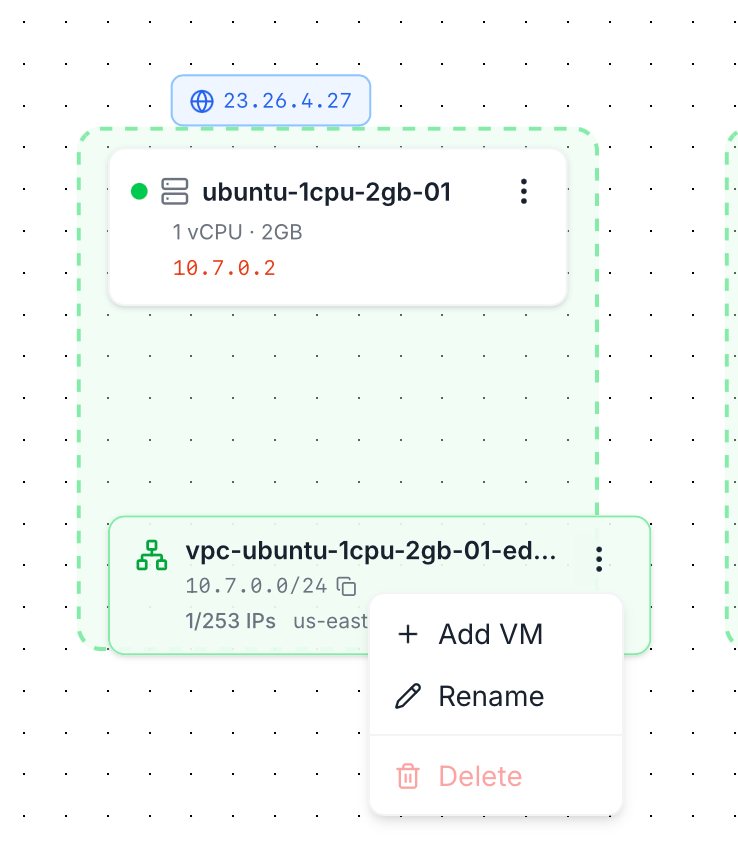
### VPC — Add VM, rename, delete
Click the `⋮` on a VPC card:
| Action | Effect |
| ------------------- | ------------------------------------------------------------------------------------------------------------ |
| **View VM** | Opens the VM detail page in a new context |
| **Detach from VPC** | Removes the VM's interface in this VPC. The VM stays running but loses the private IP from this VPC's range. |
A VM must remain reachable on **at least one network** — Raff blocks the detach if it would leave the VM with no interfaces. If the VM only has its VPC NIC and no public IP, attach a public IP first or move it to a different VPC before detaching.
### VPC — Add VM, rename, delete
Click the `⋮` on a VPC card:
 | Action | Effect |
| ---------- | ------------------------------------------------------------------------------------------------------------------------------------------------------------------------------------ |
| **Add VM** | Opens the VM-attach flow scoped to this VPC — pick an existing VM in the same region or [create a new one](/products/network/vpc/quickstart-guides/attach-vm) directly into the VPC. |
| **Rename** | Inline edit of the VPC name. CIDR and VNI are immutable; only the label changes. |
| **Delete** | Removes the VPC. Only allowed when **no VMs are attached** — detach all members first or the action is blocked. |
Deleting a VPC frees its CIDR for reuse and releases its VNI. The action is permanent.
## Reading public-network state
The diagram answers the most common "what's attached to what" questions at a glance:
* **VM with no public IP** — no blue chip floats above the card. The VM is reachable only over its VPC.
* **VM with multiple public IPs** — multiple chips stack above the card.
* **VM in multiple VPCs** — the same VM card appears inside each VPC's box, with its private IP from that VPC's range.
* **VPC with no internet gateway** — no Gateway card hangs below the VPC. VMs reach the internet only via their own public IPs.
* **VPC with internet gateway** — a green Gateway card hangs below the VPC showing router IP and public IP — see above.
* **Empty VPC** — green box with no VM cards. Safe to delete (or attach a VM with the VPC menu).
* **IP usage indicator** — each VPC footer shows `1/253 IPs us-east` style — number of IPs in use vs. total usable in the CIDR. Watch this when fleets grow toward the prefix's limit.
## When to use the Diagram vs the list tabs
| Use the **Diagram** when | Use **VPCs / Public IPs / Firewall** lists when |
| ----------------------------------------------------------- | --------------------------------------------------- |
| You're orienting — "what does my network look like?" | You're searching — "find the VPC named `prod-data`" |
| You want to detach an IP or VM by clicking the thing itself | You want to bulk-edit or sort by CIDR / region |
| You're explaining your network to a teammate | You're auditing rules and need a flat table |
| You need to see which VM holds which public IP | You're creating new resources in bulk |
The two views are kept in sync — anything you do in the diagram shows up in the list tabs immediately, and vice versa.
## Related
Add a new private network.
Move an existing VM into a VPC.
Why two VPCs can use the same CIDR and never see each other.
| Action | Effect |
| ---------- | ------------------------------------------------------------------------------------------------------------------------------------------------------------------------------------ |
| **Add VM** | Opens the VM-attach flow scoped to this VPC — pick an existing VM in the same region or [create a new one](/products/network/vpc/quickstart-guides/attach-vm) directly into the VPC. |
| **Rename** | Inline edit of the VPC name. CIDR and VNI are immutable; only the label changes. |
| **Delete** | Removes the VPC. Only allowed when **no VMs are attached** — detach all members first or the action is blocked. |
Deleting a VPC frees its CIDR for reuse and releases its VNI. The action is permanent.
## Reading public-network state
The diagram answers the most common "what's attached to what" questions at a glance:
* **VM with no public IP** — no blue chip floats above the card. The VM is reachable only over its VPC.
* **VM with multiple public IPs** — multiple chips stack above the card.
* **VM in multiple VPCs** — the same VM card appears inside each VPC's box, with its private IP from that VPC's range.
* **VPC with no internet gateway** — no Gateway card hangs below the VPC. VMs reach the internet only via their own public IPs.
* **VPC with internet gateway** — a green Gateway card hangs below the VPC showing router IP and public IP — see above.
* **Empty VPC** — green box with no VM cards. Safe to delete (or attach a VM with the VPC menu).
* **IP usage indicator** — each VPC footer shows `1/253 IPs us-east` style — number of IPs in use vs. total usable in the CIDR. Watch this when fleets grow toward the prefix's limit.
## When to use the Diagram vs the list tabs
| Use the **Diagram** when | Use **VPCs / Public IPs / Firewall** lists when |
| ----------------------------------------------------------- | --------------------------------------------------- |
| You're orienting — "what does my network look like?" | You're searching — "find the VPC named `prod-data`" |
| You want to detach an IP or VM by clicking the thing itself | You want to bulk-edit or sort by CIDR / region |
| You're explaining your network to a teammate | You're auditing rules and need a flat table |
| You need to see which VM holds which public IP | You're creating new resources in bulk |
The two views are kept in sync — anything you do in the diagram shows up in the list tabs immediately, and vice versa.
## Related
Add a new private network.
Move an existing VM into a VPC.
Why two VPCs can use the same CIDR and never see each other.