

Open the detail page
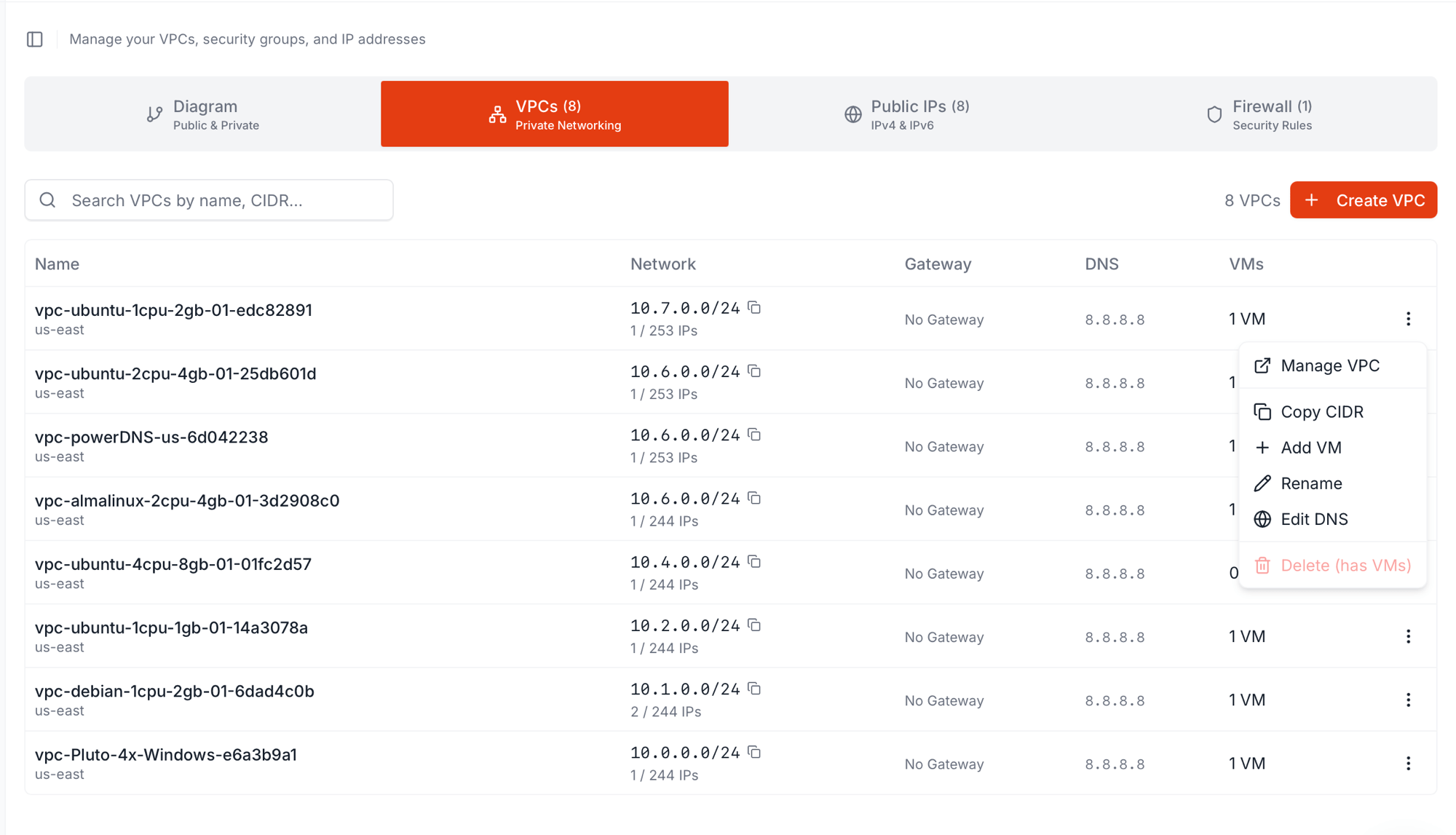
In Networking → VPCs, find the VPC and click its⋮ menu → Manage VPC.
What the detail page shows
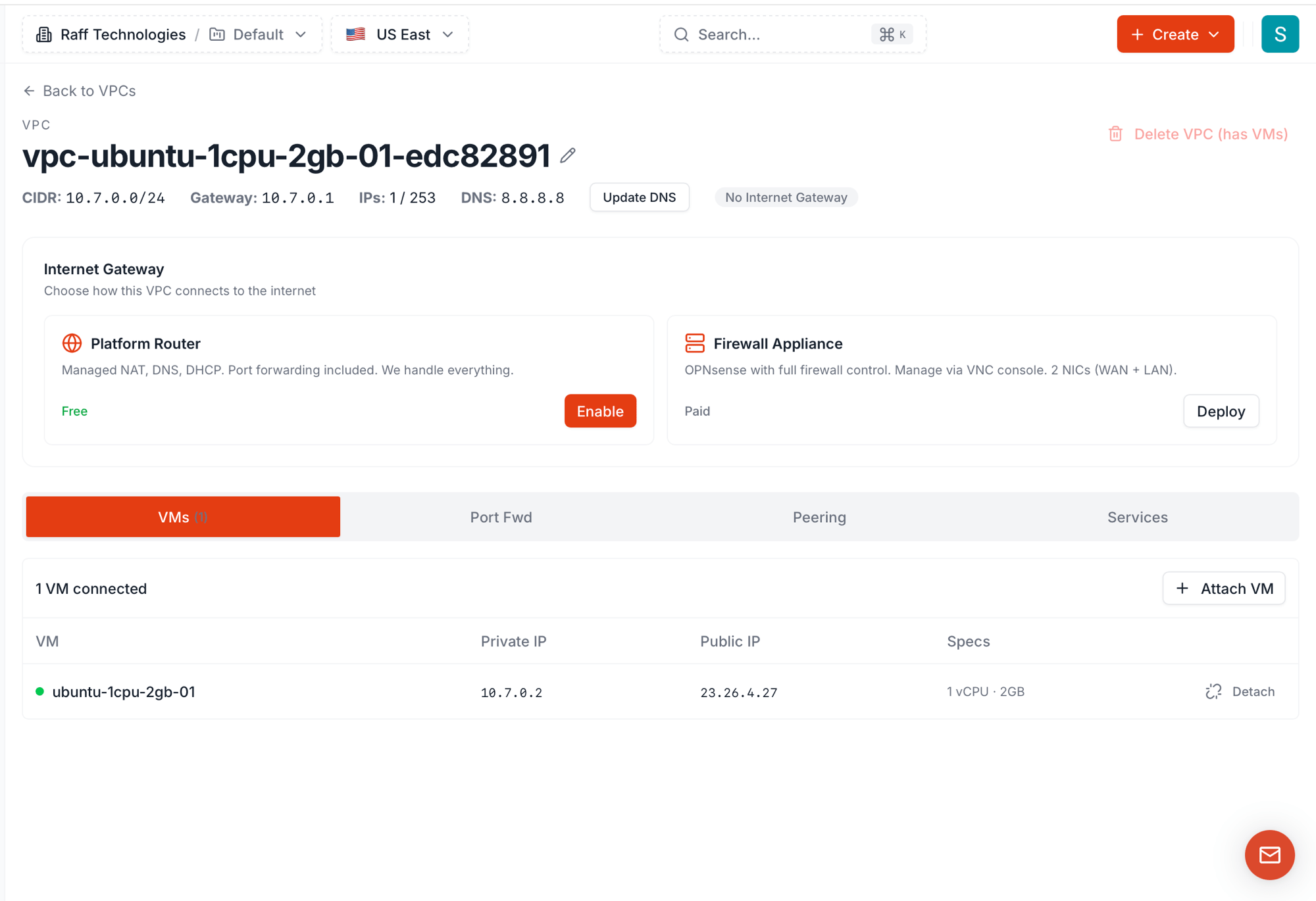
- Header — VPC name (with inline rename pencil),
Delete VPCaction on the right (disabled while VMs are attached) - Stats row — CIDR, gateway IP, IPs in use vs available, DNS, Update DNS button, and an Internet Gateway badge (
No Internet Gatewayuntil you enable one) - Internet Gateway picker — two cards, Platform Router and Firewall Appliance
- Tabs — VMs (live), Port Fwd (live), Peering (coming soon), Services (coming soon)
Rename a VPC
Click the pencil icon next to the VPC name in the header. The name becomes editable; type a new label and confirm. The CIDR and VXLAN VNI don’t change — only the display label. You can also rename from the row menu in the list view; both go through the same update.Change DNS
The default resolver for VPC members is8.8.8.8 (Google Public DNS). Change it from the stats row’s Update DNS button or from the row menu’s Edit DNS action — both open the same dialog.
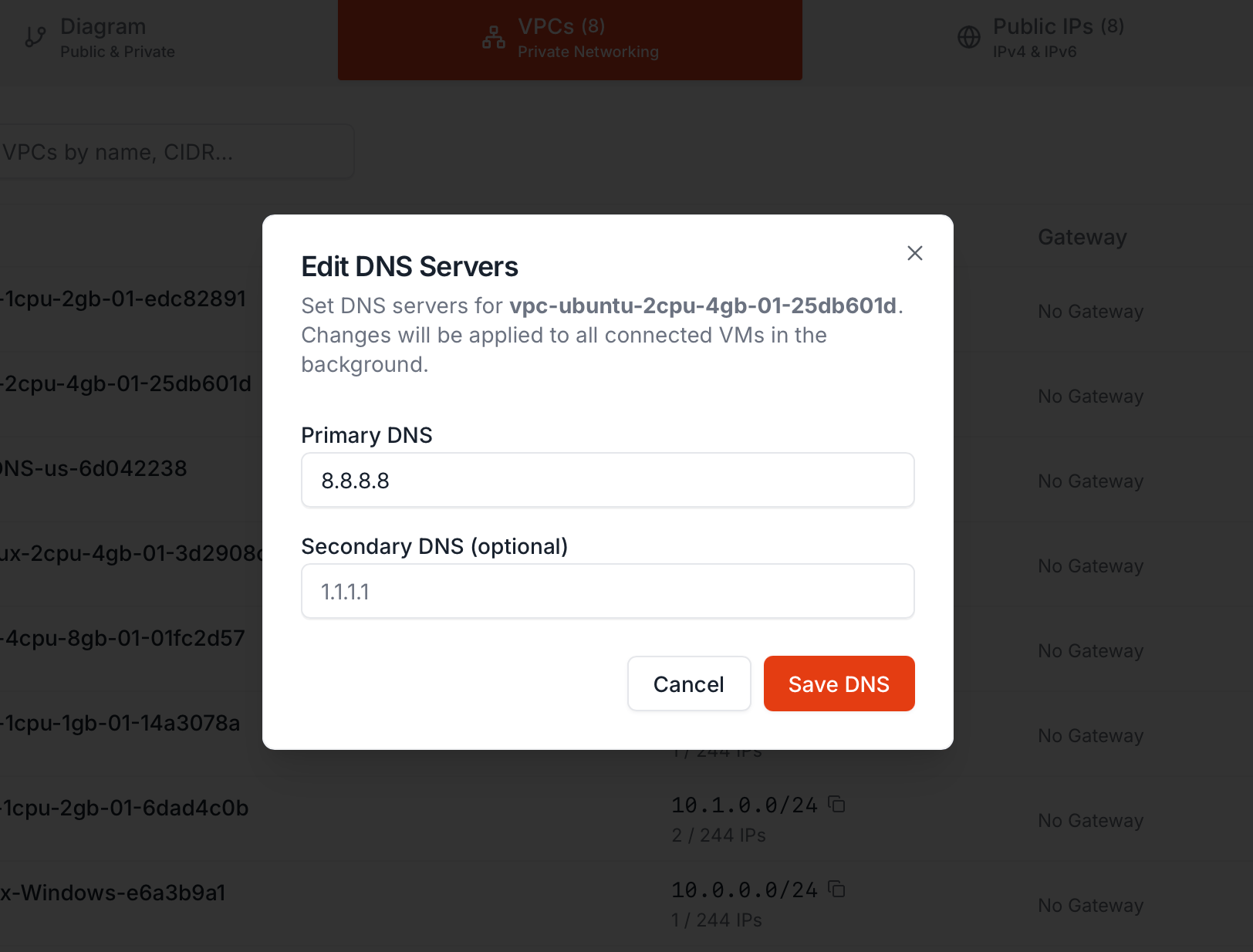
Both addresses must be reachable from VMs in this VPC. If you set an internal resolver as primary, make sure that VM is up and listening before saving — VMs in the VPC will start using the new resolver as soon as they renew their DHCP lease.
Click Save DNS to apply. The dialog notes “Changes will be applied to all connected VMs in the background” — that’s exactly what happens. New VMs joining the VPC pick up the new values from DHCP at boot; existing VMs apply them on lease renewal (typically minutes to a few hours, depending on your image’s DHCP client). To force it immediately inside a guest:
- Linux —
dhclient -r && dhclientorsystemctl restart systemd-networkd - Windows —
ipconfig /renewfrom an elevated prompt
Internet Gateway — Platform Router vs Firewall Appliance
By default a VPC has no internet gateway — the badge in the stats row saysNo Internet Gateway and VMs reach the internet only if they have their own Public IP attached. To give VMs in the VPC outbound internet access without assigning each one a Public IP, enable an internet gateway. Two mutually exclusive choices per VPC, picked once and switchable later:
Platform Router (free)
Click Enable on the Platform Router card. The router VM is provisioned in the background — usually under a minute — and the gateway badge flips toGateway Active.
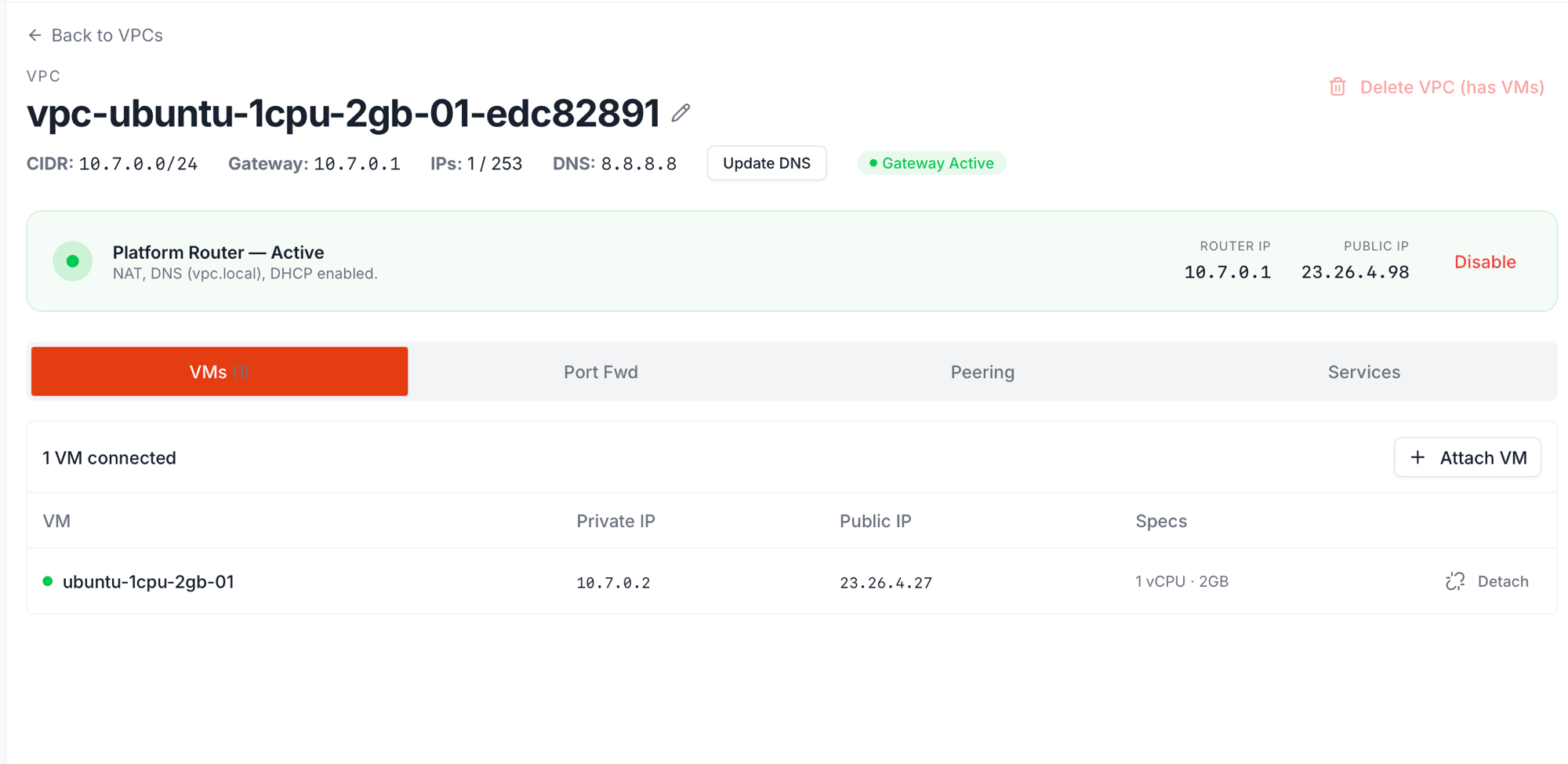
There is nothing to SSH into and nothing to maintain — Raff handles patching, HA, and lifecycle. The router’s public IP is reserved while the gateway is enabled and returns to your account when you disable it.
Firewall Appliance ($4.99 or $9.99 / month)
Click Deploy on the Firewall Appliance card. The Deploy dialog opens with everything you need to bootstrap OPNsense in one form.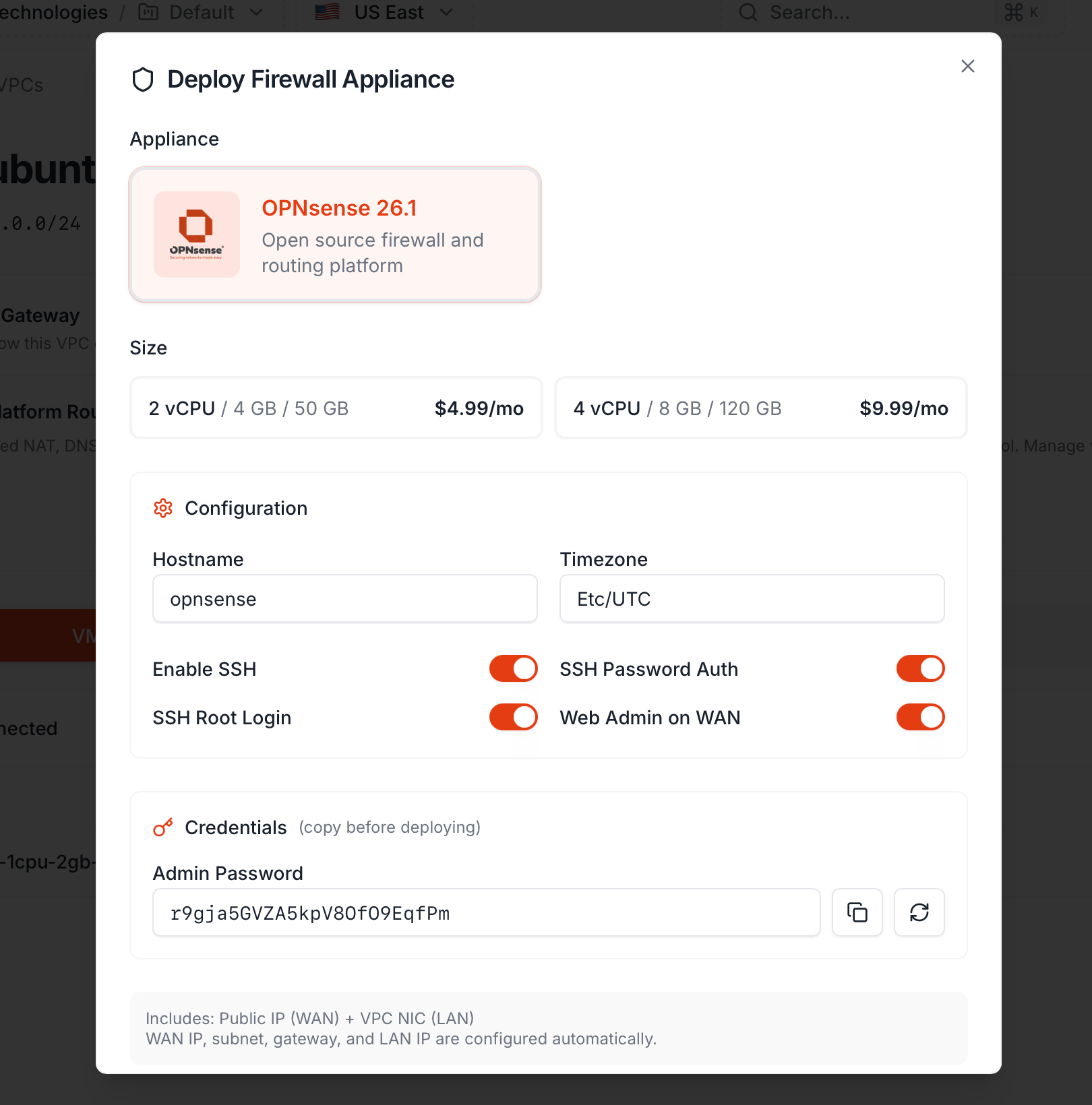
The small plan handles a few hundred concurrent connections and a couple of VPN tunnels comfortably. Step up to large for IDS/IPS rules, larger fleets, or many VPN clients. The plan bills like any other VM — accrues continuously, settled month-end on the 1st against your account balance — and unused days are credited back if you delete the gateway mid-cycle.
Configuration:
You can change all of these inside OPNsense after deploy — these toggles just set the initial config so you can reach the appliance in the first place.
Credentials — copy the admin password BEFORE deploying:
The dialog auto-generates a 24-character admin password. Copy it now. The dashboard stores it for display, but the convention is to grab it before clicking Deploy. The regenerate button (the circular arrow) creates a new one if you want.
This password is the
root password for the OPNsense web UI and SSH. Treat it like any other production credential — paste it into your secrets manager.
What “Includes: Public IP (WAN) + VPC NIC (LAN)” means:
The dialog footer notes: Includes: Public IP (WAN) + VPC NIC (LAN). WAN IP, subnet, gateway, and LAN IP are configured automatically.
Translation:
- The appliance gets two NICs —
vtnet0is WAN with a public IPv4,vtnet1is LAN sitting at.1of your VPC - The WAN settings (public IP, subnet mask, default gateway) and LAN settings (VPC IP, subnet) are pre-baked into the OPNsense config — you don’t manually configure them
- VMs in the VPC use the LAN IP as their default gateway, just like with the Platform Router
https://<public_ip> (or via VNC console if you turned Web Admin on WAN off), log in as root / your saved admin password, and configure rules. From there it’s vanilla OPNsense — every guide and book about OPNsense applies.
Switching gateway types
Both types are mutually exclusive. To switch:- Click Disable on the active gateway card
- The gateway VM is torn down, its public IP returned to your account
- The card re-renders to show both options again
- Pick the other and Enable / Deploy
VMs tab — attach and detach
The VMs tab lists every VM attached to the VPC with its private IP, public IP (if any), and specs. Each row has a Detach action.- + Attach VM — pick an existing VM in the same region and add it to this VPC
- Detach — remove the VM’s interface in this VPC. The VM keeps running on its other interfaces; if this was its only interface, the detach is blocked
Port Fwd tab — public-port forwarding
Available only after you’ve enabled the Platform Router gateway (the Firewall Appliance has its own NAT/port-forwarding inside OPNsense). Lets you forward traffic arriving on the router’s public IP to specific private VMs.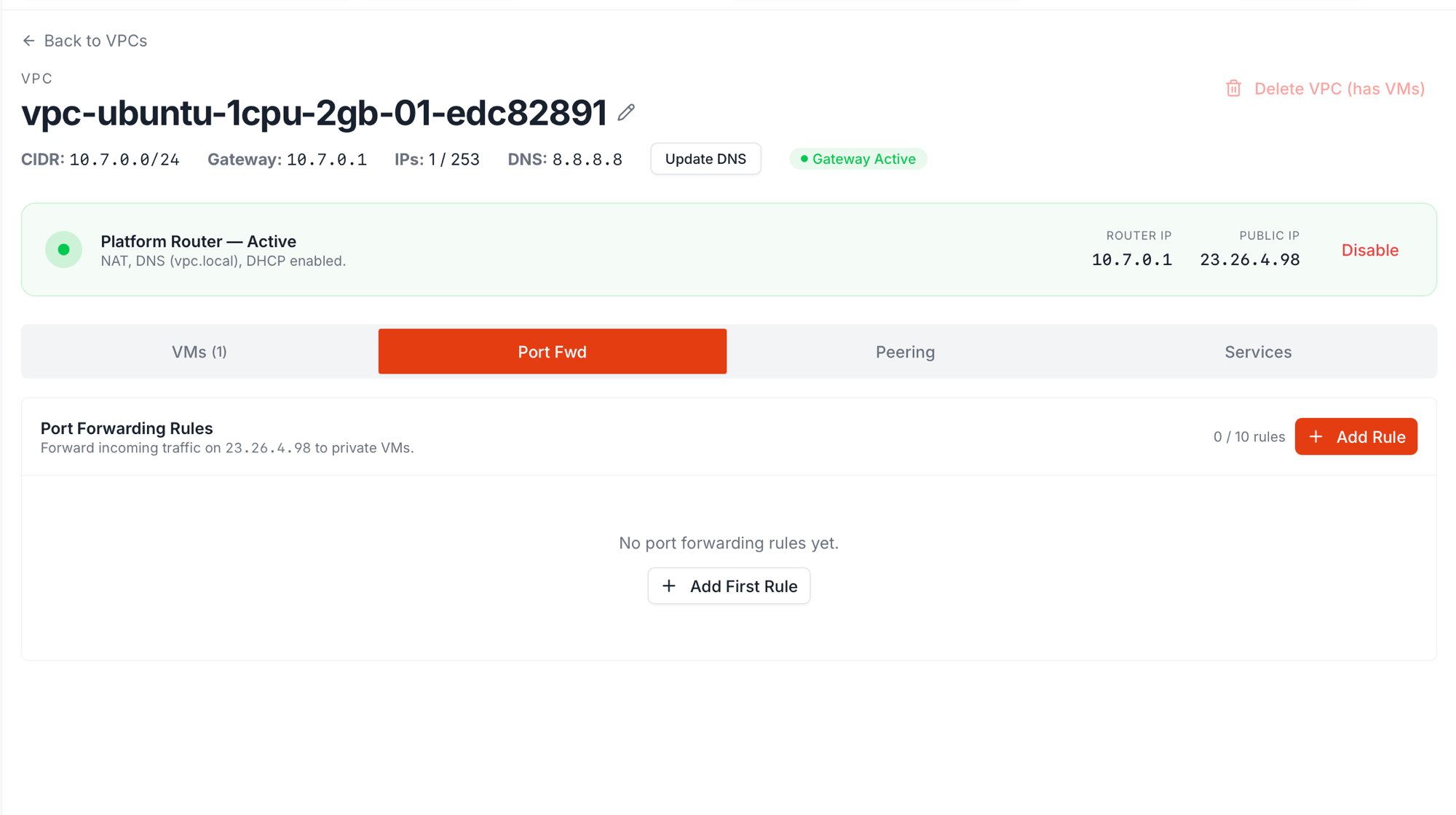
23.26.4.98 to private VMs” — so you always know which public IP your rules ride on. That’s the same PUBLIC IP shown on the gateway card.
Up to 10 rules per VPC — the counter reads
0 / 10 rules when empty. Add with + Add Rule (or + Add First Rule in the empty state), delete with the trash icon on each row. Rules apply within a few seconds.
Common patterns:
If you need more than 10 rules, complex NAT, or rule-level inspection, deploy the Firewall Appliance instead — OPNsense supports unlimited rules with full match-on-anything semantics.
Peering tab — coming soon
The dashboard shows a Peering tab on every VPC, but it’s a placeholder today. When VPC peering ships, you’ll be able to connect two VPCs so VMs on one can reach VMs on the other over their private subnets. Until then, route cross-VPC traffic through public IPs or a shared gateway VM.Services tab — coming soon
Reserved for Load Balancer and VPN Gateway as managed services attached to a VPC. Also placeholder today. The Firewall Appliance handles the VPN case in the meantime.Delete the VPC
The red Delete VPC action is on the top-right of the detail page (and as the bottom item in the row menu). It’s disabled while any VM is attached — the dashboard showsDelete (has VMs) as a hint. To delete:
- Detach every VM from the VMs tab (or delete them entirely)
- Click Delete VPC, confirm
Related
Create a VPC
Set up a new VPC.
Attach a VM
Add a VM to this VPC.
Delete a VPC
Remove an empty VPC.