Documentation Index

Fetch the complete documentation index at: https://docs.rafftechnologies.com/llms.txt

Use this file to discover all available pages before exploring further.

Updated May 8, 2026 The Networking page in the dashboard opens to a live, interactive diagram of your private network: every VPC, every VM that lives in one, and every public IP attached to a VM, drawn in their actual relationships. It’s the fastest place to answer questions like “which VPC is this VM on?”, “which IP is attached to which server?”, and “can I detach this without breaking anything?” — and to take action without jumping between tabs.

Open the page

In the left sidebar, click Networking. The page opens on the Diagram tab by default.
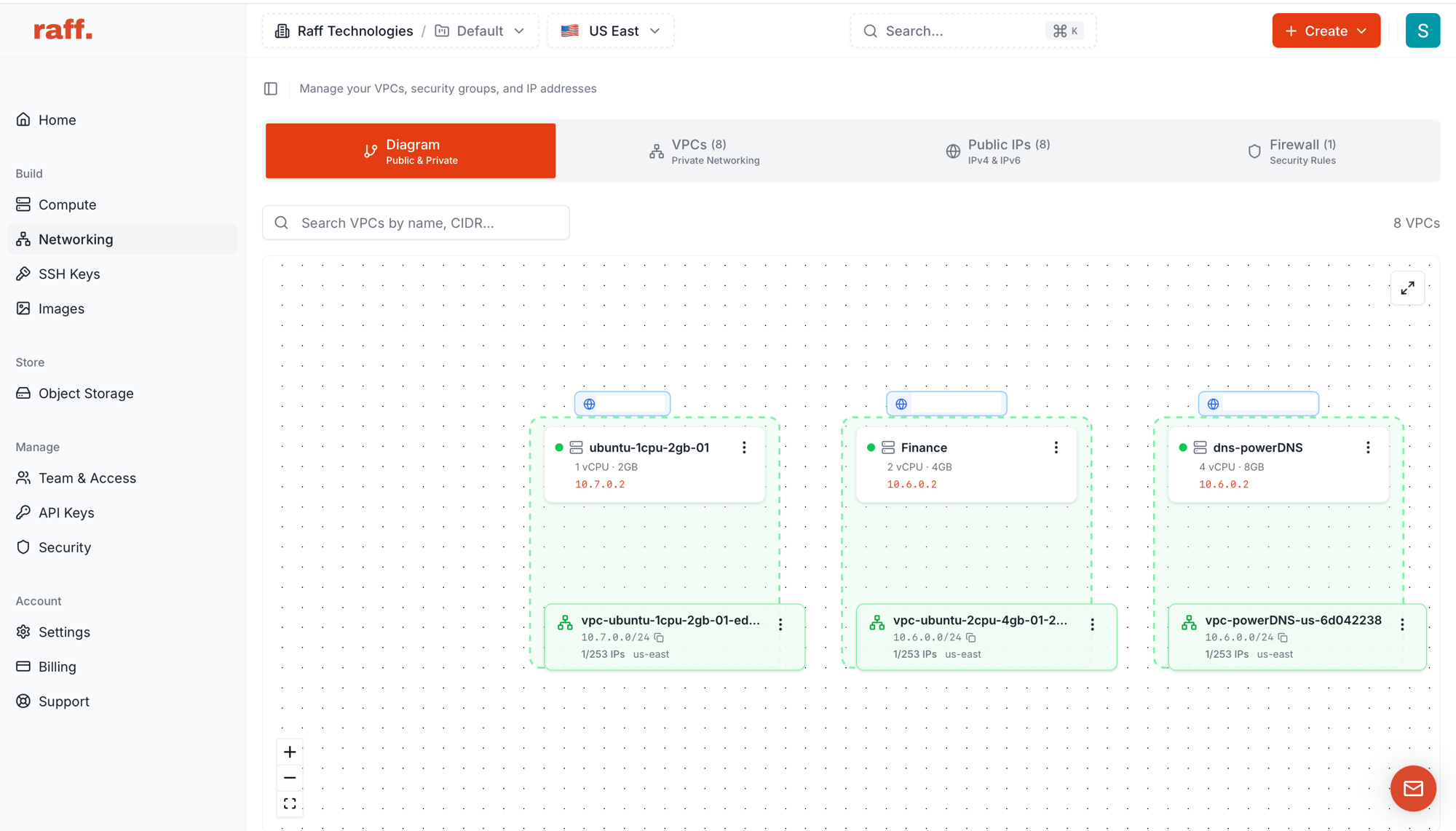
Networking page on the Diagram tab showing four tabs across the top (Diagram / VPCs / Public IPs / Firewall) and three VPC cards as green dashed boxes, each with a VM card and a public IP chip floating above
Across the top there are four tabs:
TabWhat it shows
DiagramInteractive map of VPCs, VMs, and public IPs — what this page is about
VPCsFlat list of every VPC with CIDR, IP usage, region, attached VMs
Public IPsEvery IPv4 / IPv6 address you hold, free or assigned
FirewallSecurity rules — inbound and outbound rules attached to VMs

Reading the diagram

Each entity on the canvas has a fixed shape:
ShapeWhat it is
Green dashed boxA VPC. Header shows the VPC name; footer shows CIDR, IP usage (e.g. 1/253 IPs), and region.
White card inside a VPCA VM that’s attached to that VPC. Shows VM name, vCPU/RAM, and its private IP inside the VPC (e.g. 10.7.0.2).
Blue chip floating above a VMA public IP attached to the VM. Click it for actions.
Green Gateway card hanging below a VPCAn active Internet Gateway for that VPC (Platform Router or Firewall Appliance). Shows the gateway’s router IP and public IP.
Drag with the canvas to pan, scroll to zoom, or use the + / controls in the bottom-left. The expand icon in the top-right opens a fullscreen view.

How a VPC with a gateway looks

When you enable an Internet Gateway on a VPC (see Manage a VPC → Internet Gateway), the diagram adds a Gateway card connected to the bottom of that VPC:
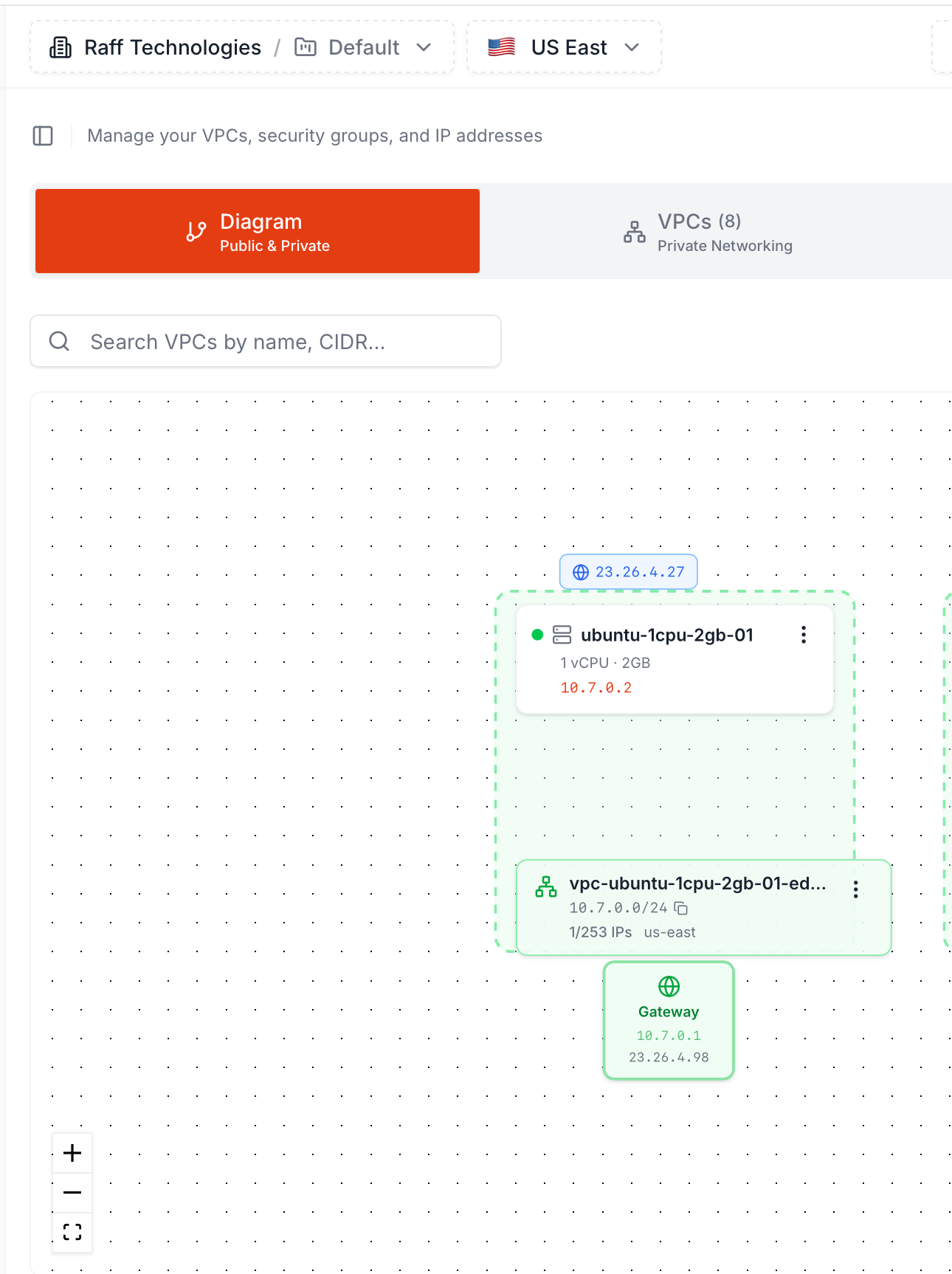
Networking diagram showing one VPC vpc-ubuntu-1cpu-2gb-01-edc... with one VM ubuntu-1cpu-2gb-01 holding private IP 10.7.0.2 and public IP 23.26.4.27, and a Gateway card hanging below the VPC with router IP 10.7.0.1 and public IP 23.26.4.98
The Gateway card shows the two IPs that matter:
LineWhat it means
🌐 GatewayHeader — the icon turns green when the gateway is active
Router IP (top, e.g. 10.7.0.1)The gateway’s address inside the VPC. Always .1 of the VPC’s CIDR. VMs use this as their default gateway for outbound traffic
Public IP (bottom, e.g. 23.26.4.98)The gateway’s WAN-side public IPv4. Outbound NAT and port-forwarding rules ride on this address
The Gateway card represents both gateway types — a Platform Router and a Firewall Appliance look identical here. To see which one is active, open the VPC’s detail page (the gateway card on that page tells you, and clicking the appliance VM in Compute confirms it). The diagram itself is intentionally simple — it’s the at-a-glance map, not the gateway control panel. The card appears the moment the gateway is enabled and disappears when you Disable it from the VPC detail page.

The three action menus

Every entity on the canvas has a (three-dot) menu. The actions you get depend on what you click.

Public IP — Copy or detach

Click the blue IP chip floating above a VM:
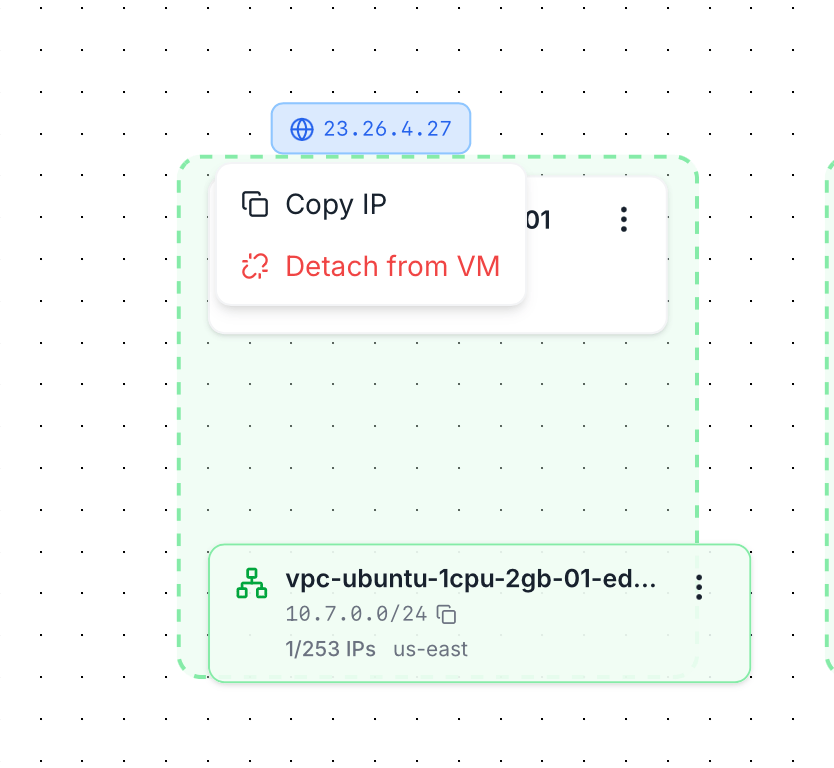
Context menu opened on a public IP chip showing two options: Copy IP and Detach from VM (in red)
ActionEffect
Copy IPCopies the address to your clipboard
Detach from VMReleases the public IP from this VM. The IP returns to your account as unassigned — it isn’t deleted. Reassign it from the Public IPs tab.
Detaching a public IP disconnects any active SSH/RDP session routed through it. If the VM has no other public IP, it becomes reachable only from inside its VPC.

VM — View or detach from VPC

Click the on a VM card:
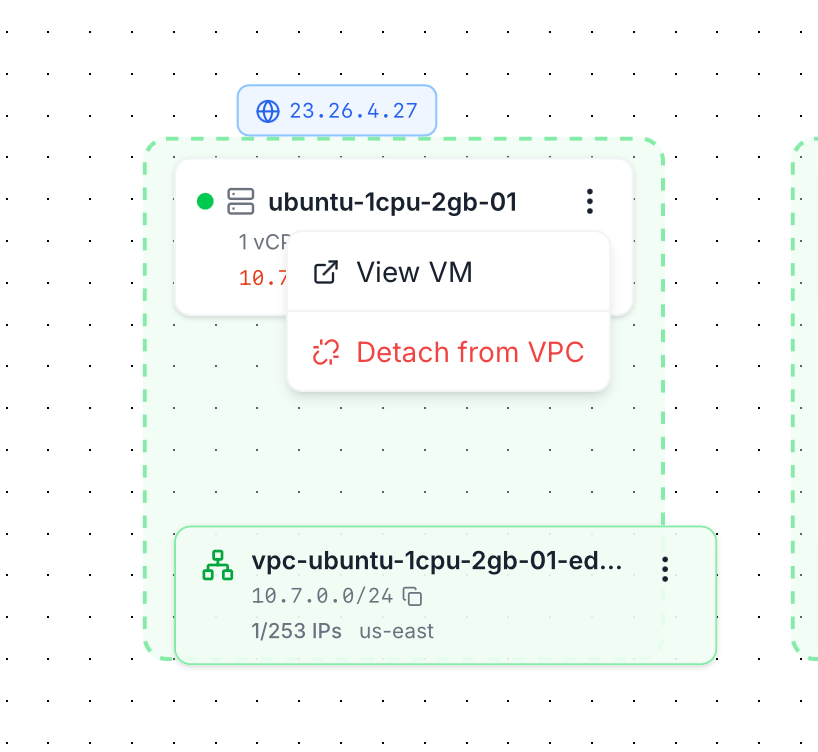
Context menu opened on a VM card showing two options: View VM (link out) and Detach from VPC (in red)
ActionEffect
View VMOpens the VM detail page in a new context
Detach from VPCRemoves the VM’s interface in this VPC. The VM stays running but loses the private IP from this VPC’s range.
A VM must remain reachable on at least one network — Raff blocks the detach if it would leave the VM with no interfaces. If the VM only has its VPC NIC and no public IP, attach a public IP first or move it to a different VPC before detaching.

VPC — Add VM, rename, delete

Click the on a VPC card:
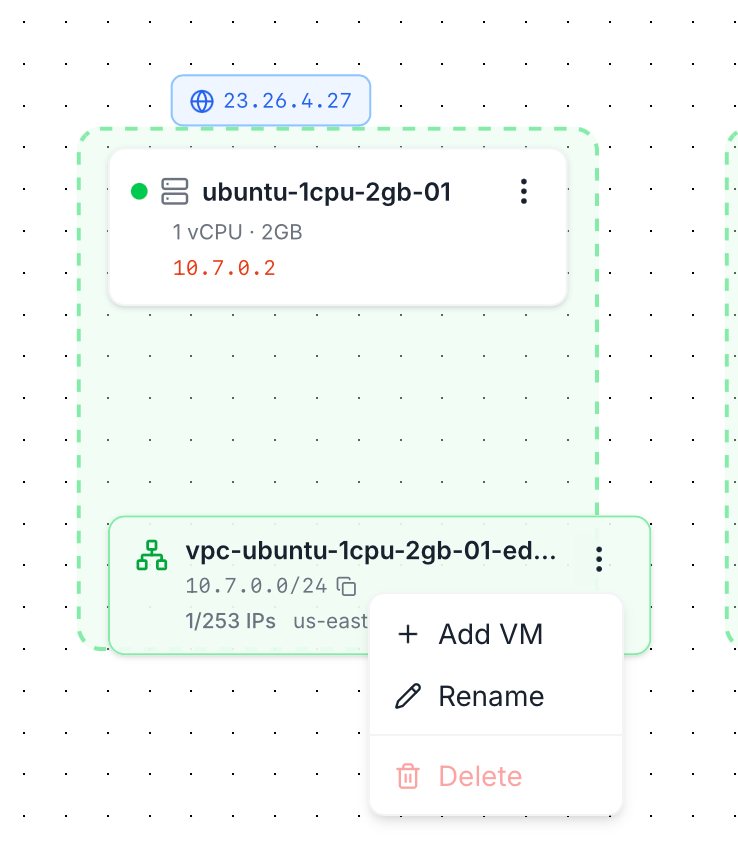
Context menu opened on a VPC card showing three options: Add VM, Rename, and Delete (in red)
ActionEffect
Add VMOpens the VM-attach flow scoped to this VPC — pick an existing VM in the same region or create a new one directly into the VPC.
RenameInline edit of the VPC name. CIDR and VNI are immutable; only the label changes.
DeleteRemoves the VPC. Only allowed when no VMs are attached — detach all members first or the action is blocked.
Deleting a VPC frees its CIDR for reuse and releases its VNI. The action is permanent.

Reading public-network state

The diagram answers the most common “what’s attached to what” questions at a glance:
  • VM with no public IP — no blue chip floats above the card. The VM is reachable only over its VPC.
  • VM with multiple public IPs — multiple chips stack above the card.
  • VM in multiple VPCs — the same VM card appears inside each VPC’s box, with its private IP from that VPC’s range.
  • VPC with no internet gateway — no Gateway card hangs below the VPC. VMs reach the internet only via their own public IPs.
  • VPC with internet gateway — a green Gateway card hangs below the VPC showing router IP and public IP — see above.
  • Empty VPC — green box with no VM cards. Safe to delete (or attach a VM with the VPC menu).
  • IP usage indicator — each VPC footer shows 1/253 IPs us-east style — number of IPs in use vs. total usable in the CIDR. Watch this when fleets grow toward the prefix’s limit.

When to use the Diagram vs the list tabs

Use the Diagram whenUse VPCs / Public IPs / Firewall lists when
You’re orienting — “what does my network look like?”You’re searching — “find the VPC named prod-data
You want to detach an IP or VM by clicking the thing itselfYou want to bulk-edit or sort by CIDR / region
You’re explaining your network to a teammateYou’re auditing rules and need a flat table
You need to see which VM holds which public IPYou’re creating new resources in bulk
The two views are kept in sync — anything you do in the diagram shows up in the list tabs immediately, and vice versa.

Create a VPC

Add a new private network.

Attach a VM

Move an existing VM into a VPC.

VXLAN, CIDR, and isolation

Why two VPCs can use the same CIDR and never see each other.
Last modified on May 8, 2026